How-to guide
Log a workout
From your first set to the recap at the end. Most sets take one tap, because RepBunny fills them in from last time.
-
Start a workout
On Home, under What are you training today?, tap one of your templates. Or tap Freeform to add exercises as you go. Tapped the wrong one? Wrong workout? Change it shows until you log your first set.
-
Log each set
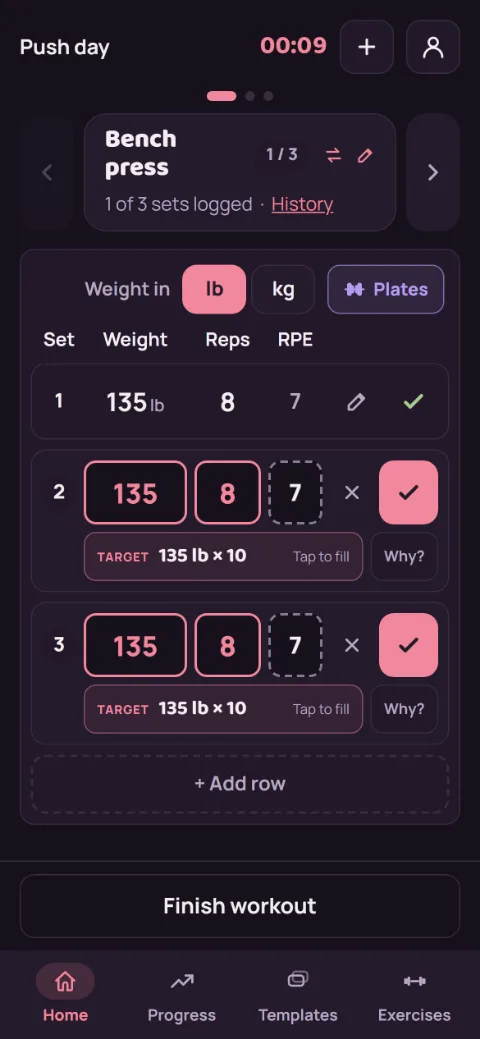
Each row is one set, filled in from the same set last time. Change the weight or reps if you need to (RPE is optional), then tap the check to log it. The rest timer starts. Need an extra set? Tap + Add row.
-
Move between exercises
Swipe the exercise card left or right, or tap the arrows or dots above it. When you finish an exercise’s planned sets, RepBunny moves you to the next one. The pencil by the name holds setup notes like a seat height, and History shows what you did before.
-
Add an exercise mid-workout
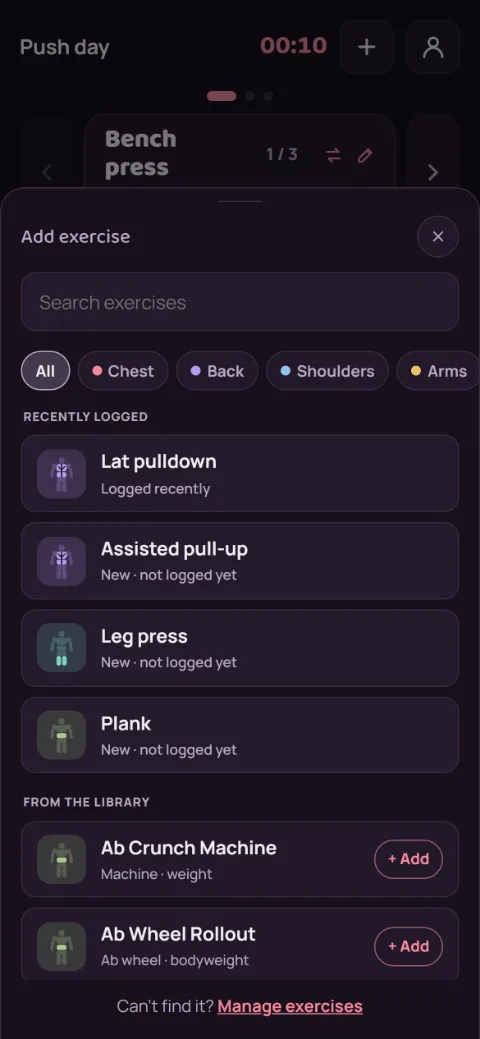
Tap + at the top. Search or filter by muscle group, and tap each exercise you want to add. Tap Done when you’re finished.
-
Fix a set
Tap the pencil on a logged set to change it, then tap the check to save. To remove it, tap Delete, then Confirm delete.
-
Finish
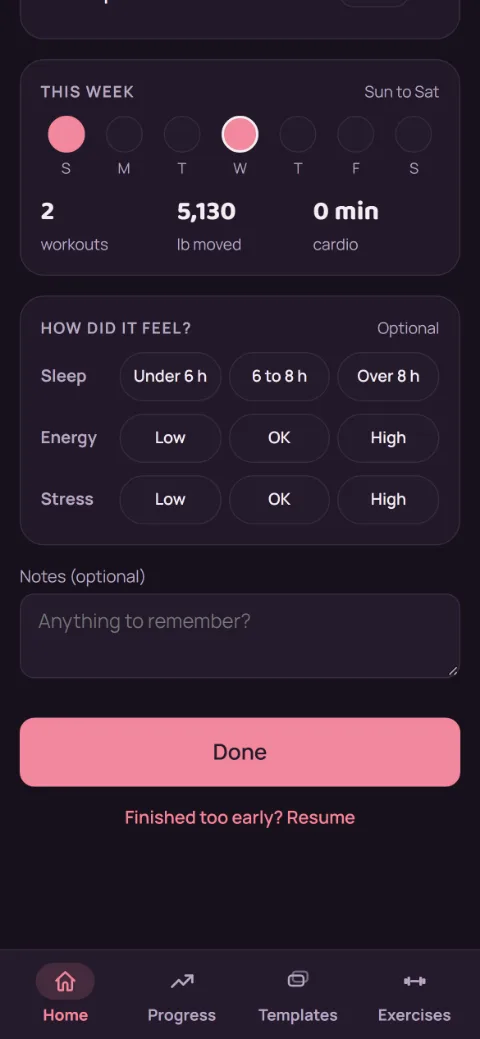
A template workout finishes on its own after its last planned set. You can also tap Finish workout anytime. If sets are left, choose Keep going or Finish anyway. The recap shows your records and progress, with a box for notes. Ended too soon? Tap Finished too early? Resume.
Still stuck?
Email [email protected] and tell us what happened. A screenshot helps.