
How-to guide
Exercise history
Every exercise keeps its own history: a chart of your progress, a target for next time, and every set you’ve logged. Check it mid-workout to know what to aim for.
-
Open it
During a workout, tap History under the exercise name. You can also open it from Exercises (the clock icon on a row) or from Progress, under Lift progress.
-
Read the chart
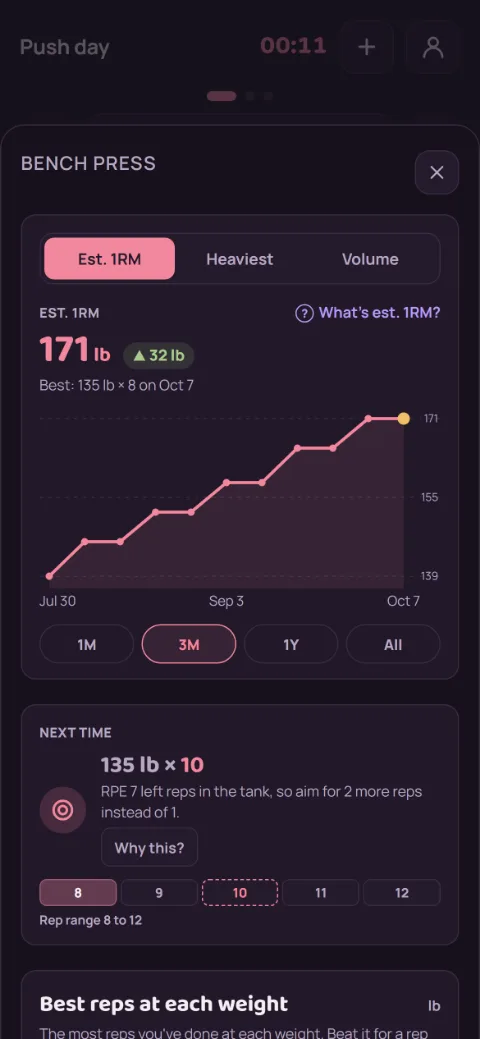
After two sessions, a chart shows your trend. Switch what it shows, like Est. 1RM, Heaviest, or Volume, and the time range: 1M, 3M, 1Y, or All. Tap What’s est. 1RM? to see how it’s worked out. In the App Store app, Heaviest over 1M or 3M is free; Est. 1RM, Volume, 1Y, and All are part of Premium, and tapping one shows a preview first.
-
Beat your Next time target
For weight exercises, Next time gives you a weight and reps to aim for. It adds one rep at your last weight until you reach the top of the 8 to 12 rep range, then says Go up to the next weight. The line under it explains why. With Premium, it also reacts to how hard last time felt, and Why this? shows the math (see Next-set targets).
-
Go for a rep record
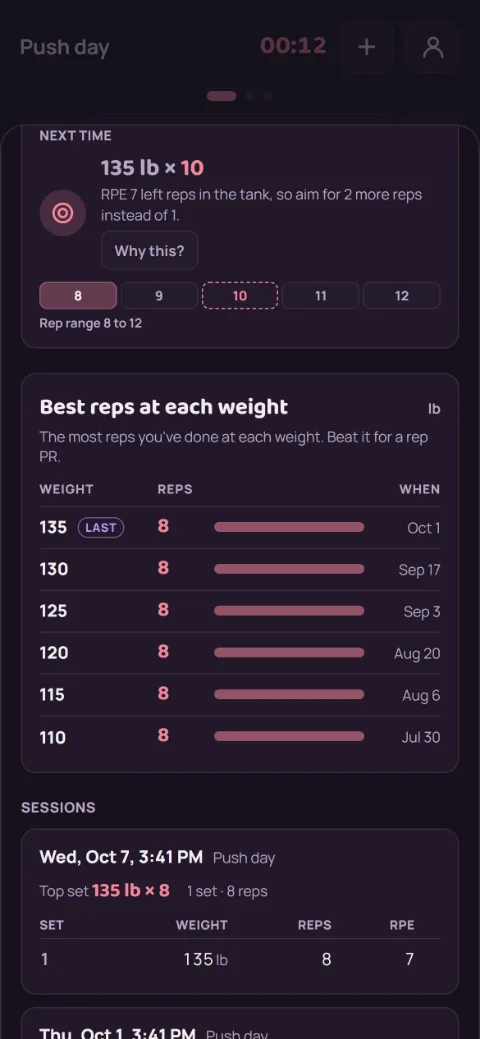
Best reps at each weight lists the most reps you’ve done at each weight. Last marks the one you used most recently. Beat any row for a rep PR. It’s part of Premium in the App Store app; Next time stays free.
-
Look back at past sessions
Under Sessions, each workout is a card with its date, its top set, and your sets lined up in columns. A gold paw marks any set that was a record. You see your last 10 sessions; tap Show older for more.
Still stuck?
Email [email protected] and tell us what happened. A screenshot helps.