How-to guide
Themes
Make RepBunny yours. Pick a theme for the whole app, and if the bunny art is a lot mid-workout, switch to Minimal. Themes are part of Premium, and you can try any of them first.
-
Open Theme
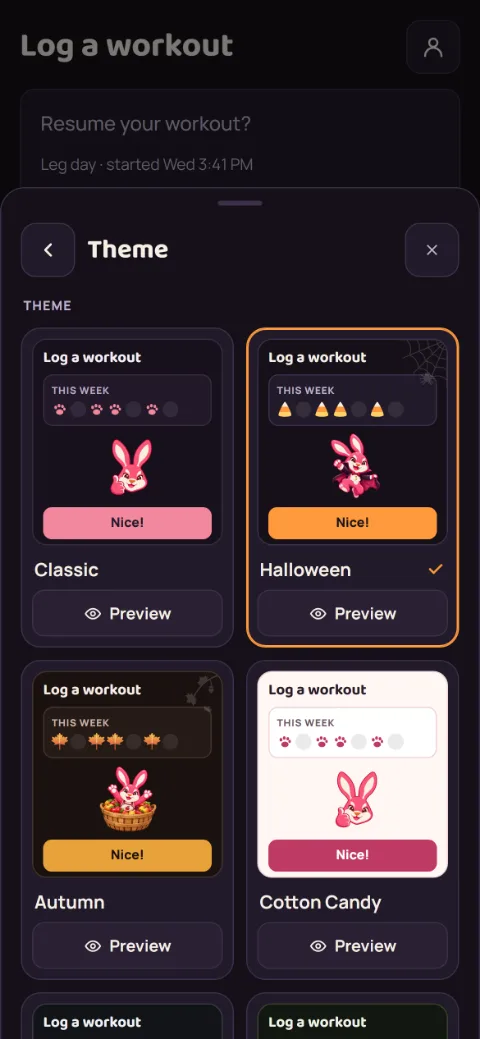
Tap the account button at the top right, then Preferences, then Theme.
-
Pick a theme
Tap a theme under Theme. It changes the whole app right away, backgrounds and all, and some themes bring their own bunny. Classic is the free one. Halloween swaps in pumpkin orange and dresses the bunny up in costumes (a vampire, a pirate, a mummy, a ghost, and more), hangs a few spider webs, and puts candy corn on your week tracker and record screens. Autumn is maple, rust, and gold on dark bark, with a bunny out for the harvest (apple picking, a wagon of pumpkins, a nap in the leaves): maple leaves on your week tracker, a little leafy sprig in a corner or two, and falling leaves when you set a record. Cotton Candy is a light one: cream and soft pink with a berry accent, for bright gyms and daytime. Chalk has no pink at all: chalk white on dark graphite with a steel-blue accent, and it goes well with the Minimal bunny. Carrot Patch is a garden: carrot orange and leafy green on dark soil, with carrots on your week tracker and raining down when you set a record. Sunrise is the other light one: warm peach and apricot with a morning-sky blue, for light mode without the pink. Records and errors keep colors that stand out in every theme.
-
Pick a mascot style
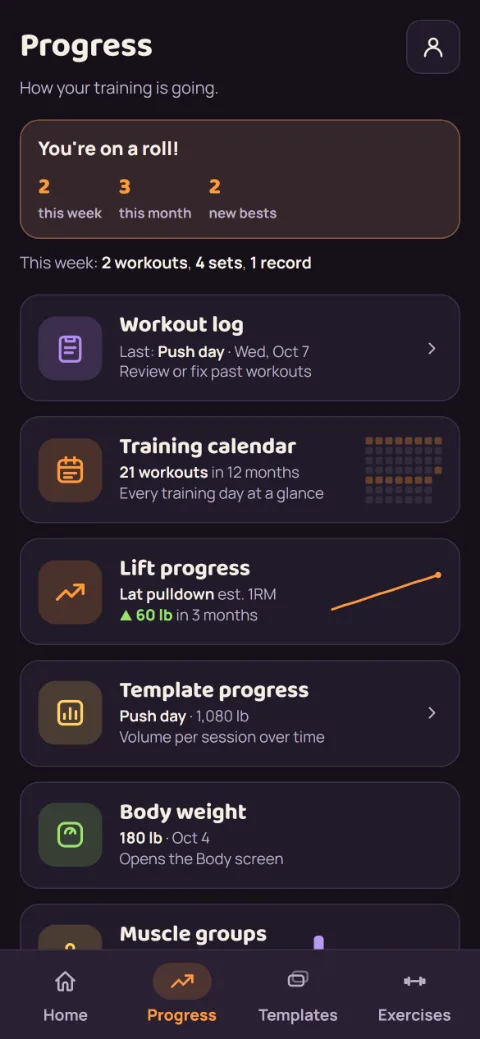
Full shows the bunny art and the confetti when you set a record. Minimal keeps just the small app mark. You still get told about a record or your first workout, in plain text.
-
Pick an outfit
Under Outfit, choose what the bunny wears, whatever the theme. Match theme is the default: the bunny dresses for your theme, so Halloween gets its costumes and Autumn its harvest outfits. Pick Halloween or Autumn to keep that outfit on any theme, like the Halloween costumes on Chalk. Holidays changes on its own: Halloween costumes in October, harvest outfits in November, and the classic bunny the rest of the year. Outfits only show with the Full mascot.
-
Pick an app icon
In the RepBunny app, scroll to App icon at the bottom of the Theme screen. Every theme has a matching icon: the same bunny and dumbbell in that theme's colors. Tap one and your home screen icon changes. It's a separate pick, so you can use one theme inside the app and another's icon outside. Your phone may tell you about the change once. If Premium ever ends, you keep the icon you picked. Without Premium, tapping an icon shows how it looks on a home screen first.
-
Try before you unlock
Each theme shows a small preview of itself. Tap Preview under one to see it full screen on Home, the rest timer, and a record, then Keep it with Premium or Not now. You can also tap the theme itself: without Premium, a pick is a preview you can see right away. Tap Keep it with Premium to unlock it, or Go back to return to Classic. Leaving the Theme screen goes back too.
Still stuck?
Email [email protected] and tell us what happened. A screenshot helps.