How-to guide
Templates
A template is a workout you repeat, like Push day. Start it with one tap, and each set starts from what you did last time.
-
Make a template
Open Templates and tap Add template. Give it a name and tap Next. The Add exercise list opens: tap each exercise you want, then Done.
The free App Store version includes 3 templates. Premium removes the limit.
-
Set it up
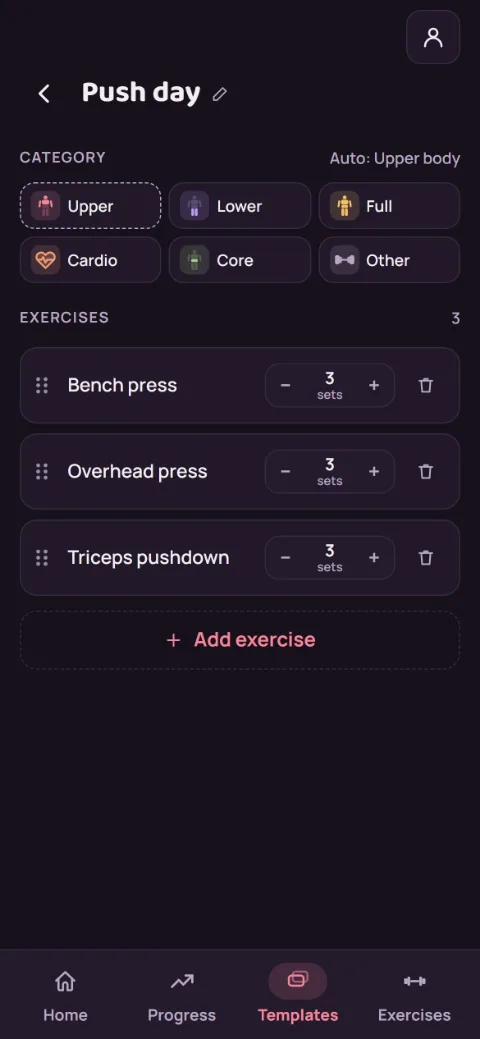
Tap − or + to set how many sets each exercise gets. Drag the dots on the left to change the order, or tap the trash can to remove one (Undo brings it back). Tap the name at the top to rename it. Changes save as you make them.
-
Pick a category
RepBunny guesses one from the exercises and marks it Auto. Tap Upper, Lower, Full, Cardio, Core, or Other to choose your own, or Use automatic to go back. It sets the icon on Home.
-
Start it from Home
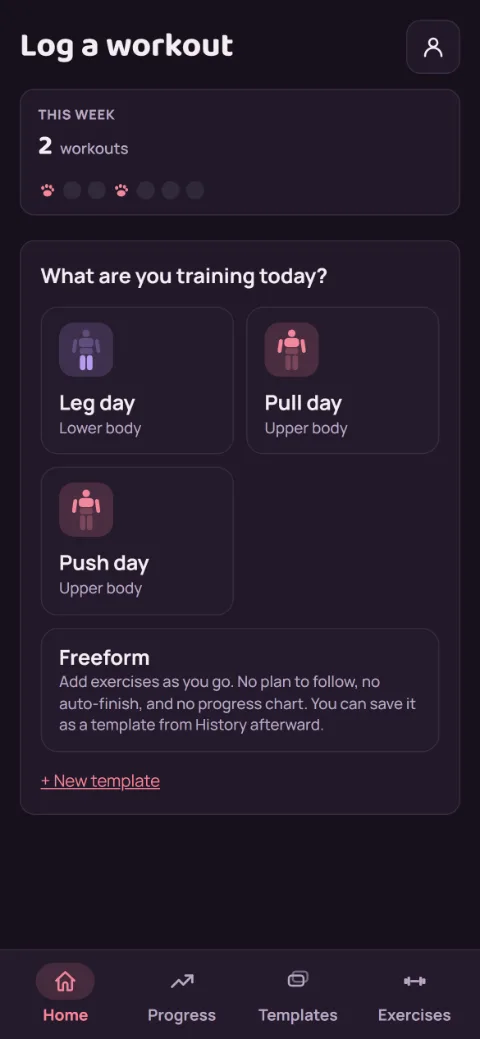
Under What are you training today?, tap the template. The workout starts right away with a row for each planned set, filled in from last time.
-
Turn a past workout into one
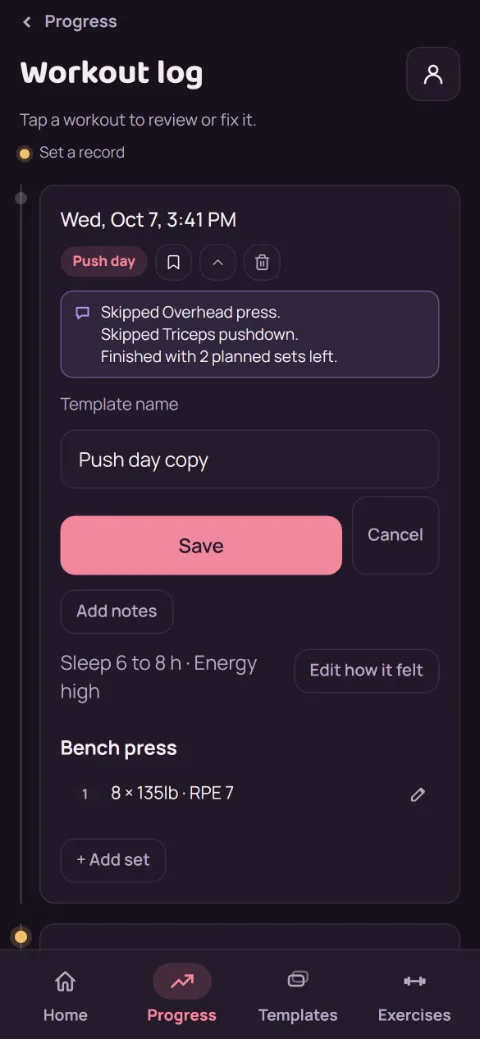
Did a Freeform workout you want to repeat? In Progress, open Workout log and tap the workout. Tap the bookmark icon, name it, and tap Save.
-
Done with one?
In Templates, tap the archive icon on its row, then Confirm archive. It leaves your list and Home, and your past workouts stay in your log.
Still stuck?
Email [email protected] and tell us what happened. A screenshot helps.