
How-to guide
Monthly reports
On the 1st of each month, Progress gets a report on the month you just finished, side by side with the month before. From January there's a recap of your whole year too. This week's numbers are free; the reports are part of Premium.
-
Check this week
Open the Progress tab. Under the bunny, a line shows this week's workouts, sets, and records. The week starts on Sunday, same as everywhere else in the app.
-
Open the report
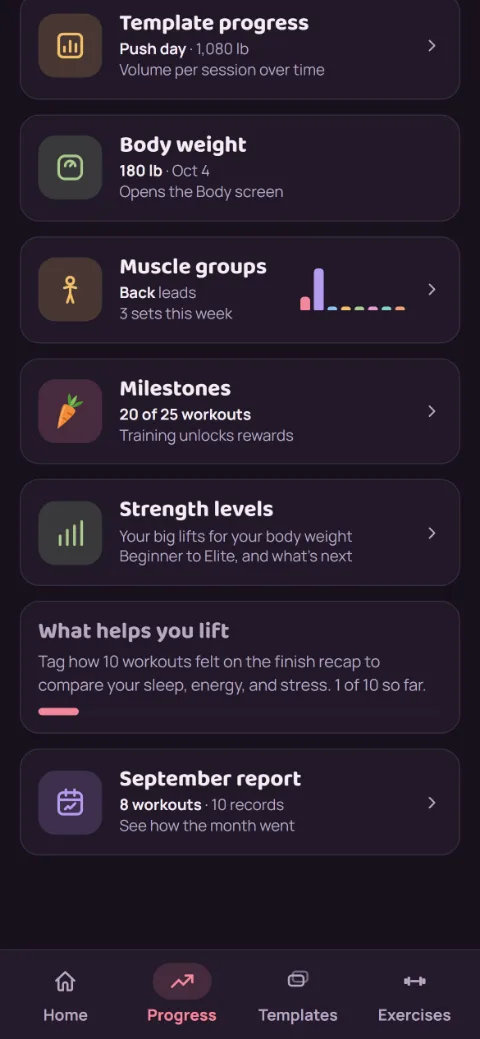
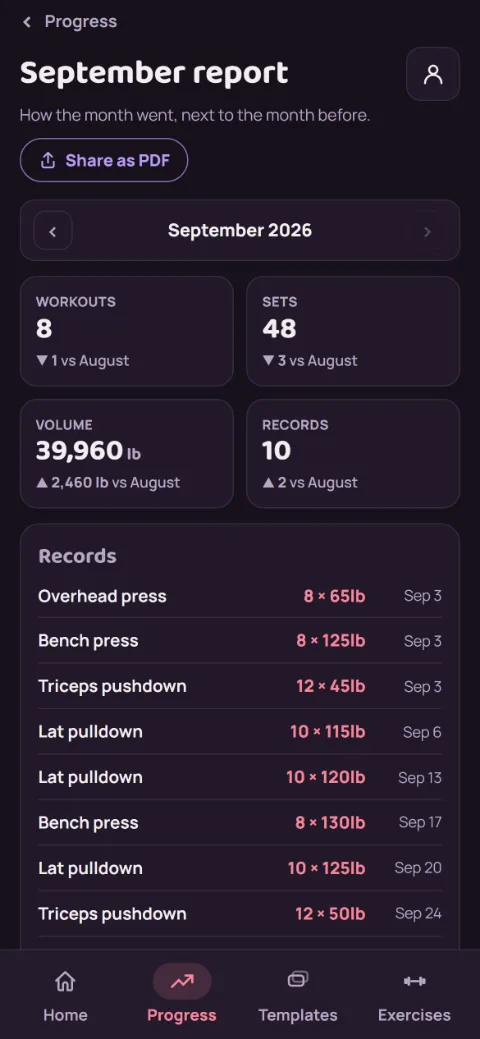
Scroll to the bottom of Progress and tap the report tile, for example September report. You'll see workouts, sets, volume, time on timed sets, and records, each with how it compares to the month before. Below that: every record you set, your three biggest est. 1RM gains, and the muscles you trained most.
-
Look back further
Use the arrows beside the month to step back through earlier months. Once you've trained in an earlier year, tap Year at the top for the year recap, with the same layout for the whole year.
-
Share it with your coach
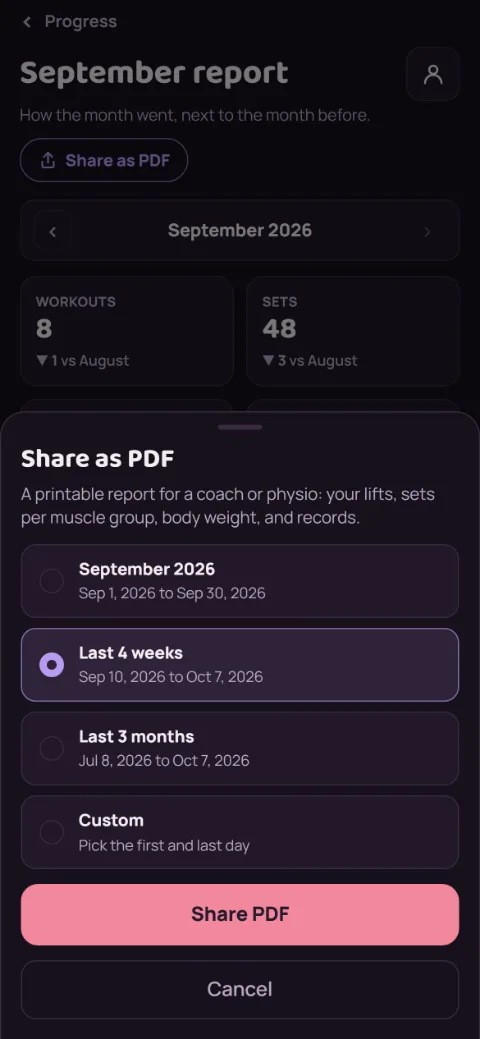
Tap Share as PDF under the report's title. Pick the range: the month you're looking at, the last 4 weeks, the last 3 months, or Custom for your own first and last day. Tap Share PDF and send it however you like. The PDF lists each lift with its sessions, best set, and est. 1RM at the start and end, then sets per muscle group, your body weight if you've logged it, and your records. It's made on your phone; nothing is uploaded.
-
Without Premium
Tapping the tile shows a blurred preview of your report, and Share as PDF lets you look at the ranges but not share. Tap Keep it with Premium to unlock it, or Go back to return to Progress. The This week line stays free.
Still stuck?
Email [email protected] and tell us what happened. A screenshot helps.