How-to guide
Load types
Not every exercise is plates on a bar. An exercise’s load type tells RepBunny what you log for each set and how it counts toward your workout volume.
-
Pick one when you make an exercise
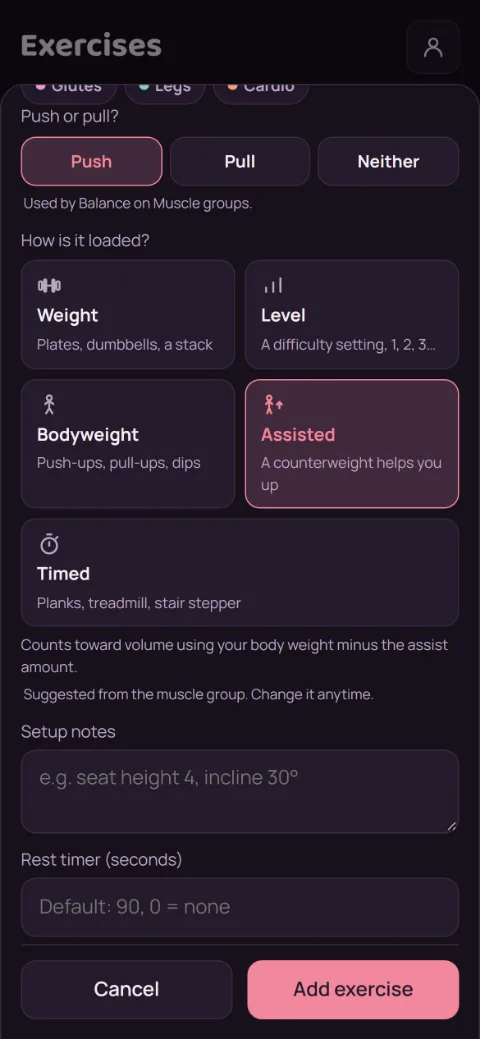
In Exercises, tap New exercise, type a name, and pick a muscle group. RepBunny suggests a load type under How is it loaded? Tap another to change it. The note under the tiles says how that type counts.
-
Know what each one means
Weight is plates, dumbbells, or a stack, and counts as reps × weight. Level is a machine setting like 1, 2, 3, and tracks progress without adding to volume. Bodyweight is push-ups or dips, with an optional Added weight for a vest or belt. Assisted is a machine that helps you up: you log the Assist, and less is better. Timed is planks or cardio, logged as a time.
Bodyweight and Assisted use your body weight, so RepBunny asks for it when you get to one of those exercises and haven’t logged a weight yet.
-
Track more on timed exercises
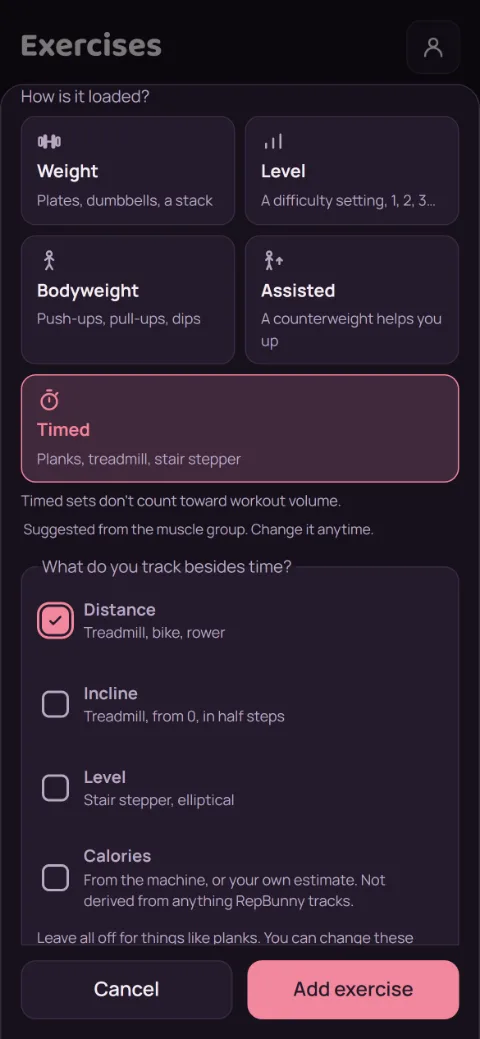
Pick Timed and you can also check Distance, Incline, Level, or Calories. Each one adds a box to the set. You can change these later, even after logging.
-
Time a set with the stopwatch
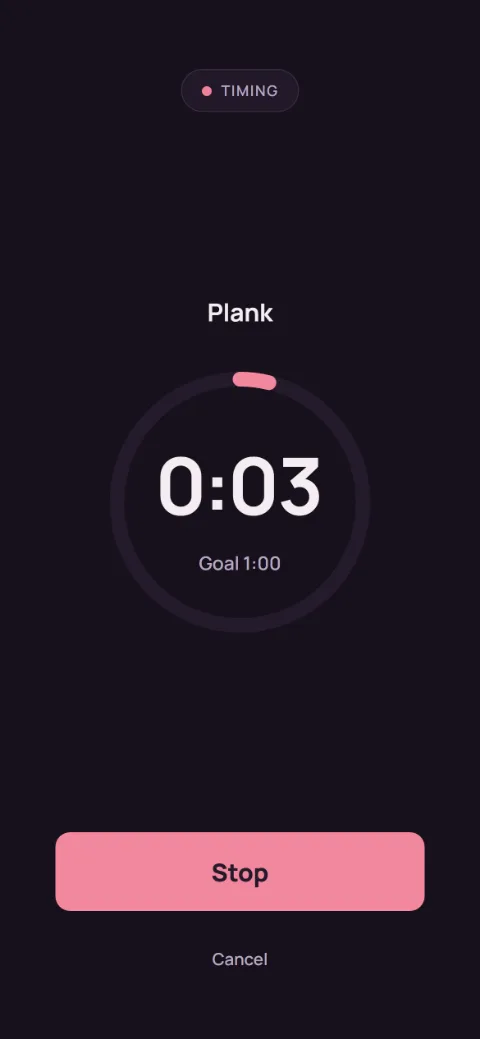
On a timed exercise, type your goal in Time and tap the timer button next to it. It chimes when you reach the goal and keeps counting. Tap Stop to put the time in the set, then tap the check to log it.
-
Picked the wrong one?
Edit the exercise and tap another tile. Once you’ve logged sets for it, the type is Locked, so past sets keep making sense. To switch then, delete the exercise and make a new one. Your past workouts keep their sets.
Still stuck?
Email [email protected] and tell us what happened. A screenshot helps.